
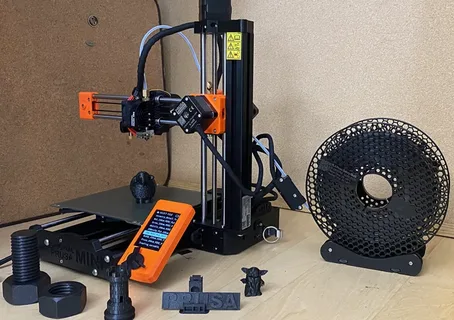
The Prusa Mini has quickly become one of the most popular 3D printers among hobbyists and professionals alike. Its compact design, reliable performance, and ease of use make it a top choice for printing high-quality models. However, one common challenge users face is balancing print speed with quality. Many assume that faster prints inevitably compromise quality, but with the right techniques, it is possible to maximize speed without sacrificing the fine details your models deserve.
In this guide, we will explore actionable strategies and settings that can help you optimize your Prusa Mini for speed while maintaining excellent print quality.
Understanding the Prusa Mini’s Capabilities
The first step to achieving faster prints without losing quality is understanding the capabilities of your Prusa Mini. This 3D printer offers a sturdy frame, a heated bed, and a range of advanced features like power recovery and quiet mode. Knowing its limitations and strengths allows you to tweak settings intelligently. For instance, the maximum recommended print speed varies depending on material type and model complexity. PLA, being less prone to warping, allows higher speeds compared to ABS or PETG.
Furthermore, the Prusa Mini supports layer heights ranging from 0.05 mm to 0.3 mm. While a smaller layer height improves detail, it significantly slows down printing. Recognizing the trade-offs between speed and resolution helps in planning prints that balance efficiency and quality. Additionally, the printer’s rigid frame and precision stepper motors make it possible to push speeds higher than other entry-level printers without noticeable defects.
Optimizing Layer Height and Print Settings
One of the most effective ways to maximize print speed on a Prusa Mini is to adjust the layer height. A larger layer height reduces the number of passes the printer must make, decreasing overall print time. For example, increasing the layer height from 0.1 mm to 0.2 mm can nearly halve printing time for certain models while still producing a visually acceptable result. Choosing the optimal layer height depends on the model’s purpose: functional prototypes can often use thicker layers, whereas display pieces benefit from finer layers.
Additionally, adjusting infill density and pattern can impact print speed. Lowering the infill percentage reduces material usage and printing time without significantly affecting structural integrity for most non-load-bearing parts. Patterns such as lines or grids print faster than complex honeycombs. By combining a slightly thicker layer height with a moderate infill, you can maintain quality while drastically improving speed on the Prusa Mini.
Leveraging PrusaSlicer Settings
The Prusa Mini works seamlessly with PrusaSlicer, an advanced software that allows precise control over print parameters. Tweaking these settings can help achieve a perfect balance between speed and quality. One key feature is variable print speed, which allows the printer to slow down during intricate details and speed up on simpler sections. This ensures delicate parts are printed accurately without slowing down the entire model.
Other useful PrusaSlicer adjustments include enabling vibration and jerk control, which minimizes ringing and ghosting at higher speeds. You can also experiment with perimeter and infill speed, giving outer walls more precision while filling interiors faster. Proper use of coasting and retraction settings prevents stringing when printing at higher speeds, which is particularly important for maintaining surface quality on the Prusa Mini.
Choosing the Right Filament and Extruder Settings
Material choice plays a critical role in achieving faster prints. The Prusa Mini handles PLA, PETG, and ASA efficiently, but each filament behaves differently at high speeds. PLA is ideal for rapid prototyping, as it prints cleanly at higher temperatures and faster speeds. PETG requires careful temperature management and slower speeds to prevent oozing and stringing. Choosing the right filament for your project allows you to push the printer closer to its speed limits without compromising quality.
Extruder temperature and flow rate are equally important. Increasing the temperature slightly can help the filament flow more smoothly at higher speeds, but overheating may lead to stringing or blobs. Similarly, adjusting the extrusion multiplier ensures consistent material deposition, reducing the likelihood of gaps or weak layers. Fine-tuning these settings on the Prusa Mini can significantly improve print times while maintaining structural integrity.
Hardware Upgrades and Maintenance Tips
Sometimes, maximizing print speed isn’t just about software settings—it also involves hardware optimization. Regular maintenance of the Prusa Mini ensures smooth operation at higher speeds. Lubricate rods, check belt tension, and clean the nozzle to prevent clogs and ensure consistent filament flow. A well-maintained printer can handle faster movements without introducing artifacts or layer shifts.
Additionally, certain hardware upgrades can enhance performance. Installing a smoother PTFE tube, upgrading fans for better cooling, or adding vibration dampers can allow higher speeds without sacrificing quality. Cooling is particularly important for the Prusa Mini, as proper layer solidification prevents warping and stringing at increased print speeds. Combining these upgrades with optimal settings ensures you get the best performance possible from your Prusa Mini.
Conclusion
Maximizing print speed on the Prusa Mini without losing quality is entirely achievable with the right approach. By understanding the printer’s capabilities, adjusting layer heights and infill, leveraging PrusaSlicer settings, selecting appropriate filament and extrusion parameters, and maintaining the hardware properly, you can achieve fast, high-quality prints.
Experimentation is key—small tweaks to speed, temperature, and software settings can produce significant improvements. With patience and careful optimization, the Prusa Mini can deliver both speed and precision, making your 3D printing projects more efficient and enjoyable.